Layout modes
A container's layout mode decides how its children line up. ReflowPDF uses real CSS layout — the same flex, grid and flow you'd write by hand — and draws it on screen so you can see what each container is doing.
Set the mode on any container in the Propertiespanel's Layout tab (the Display control). The toolbar's Layout overlays toggle then draws the structure right on the canvas.
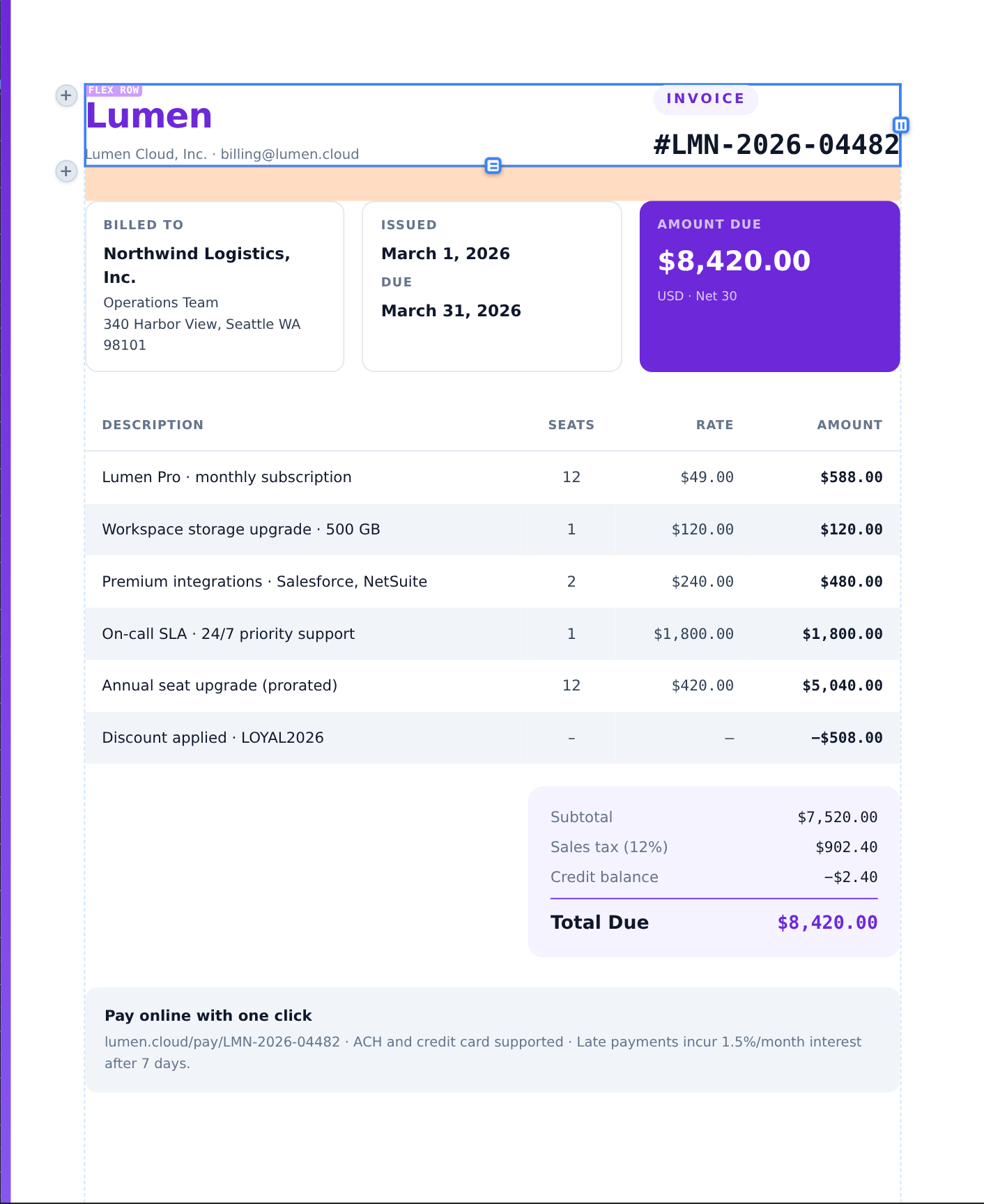
The modes
- Flex — items in a row or column with gaps, growth and alignment. The everyday workhorse for toolbars, rows and cards.
- Grid — rows × columns; great for anything that needs to line up in two dimensions.
- Block — normal document flow, one thing after another down the page.
- Inline / inline-block — for elements that sit within a line of text.
- Table — true table layout for tabular data.
Position & float
- Static — the default, in normal flow.
- Relative — nudged from its normal spot, while still taking up its original space.
- Absolute — pinned to coordinates within its container; pulled out of the flow (drag it freely on the canvas).
- Float — left/right, with text wrapping around it.
Reading the overlays
Overlays are colour-coded by mode so a glance tells you what a container is, the way browser dev-tools do it:
- Flex — purple, with arrows for the main axis and gap markers.
- Grid — orange, with dashed track lines and area labels.
- Block — blue. Table — cyan.
- Absolute — red anchor lines. Relative — yellow. Float — green.
Note
Overlays, outlines and rulers are visual aids only — they never appear in the exported PDF. Toggle them from the view controls in the toolbar.