Forms and signing
A field from Form to fill in becomes a field of the downloaded PDF, which anyone can fill in with Acrobat, Preview or a browser. A signature can be made here, before the PDF is sent, or left as a field for whoever receives it.
Fields
Form to fill in, in Blocks, has Short answer and Long answer; Email, Phone, Number and Date field; a Checkbox; One of several and Several of several; a Dropdown; and a Signature field. Each comes with its question, which you type over as any text.
Select a field, and Properties has its settings:
- Must be answered, and Cannot be changed for an answer you fill in yourself.
- Longest answer, in characters, for a written answer.
- Choices, for a list or a dropdown: add, reorder and remove them, and Place the choices one under another or side by side.
- The field’s Name in the form’s data, under which its answer is exported from the PDF.
Each field’s question is its label in the PDF, so a screen reader reads the question with the field. The Accessibility check lists a field without one.
Signing
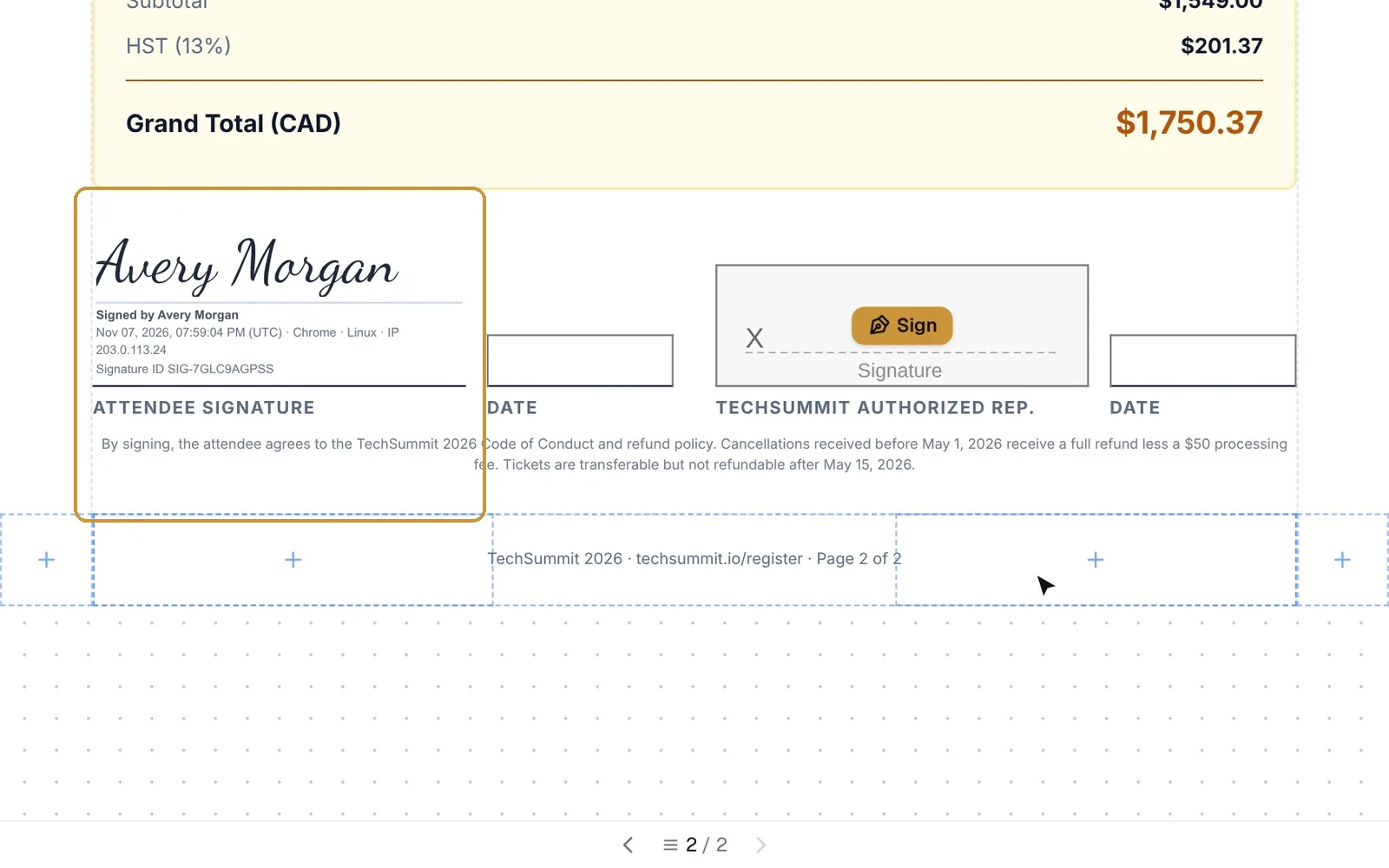
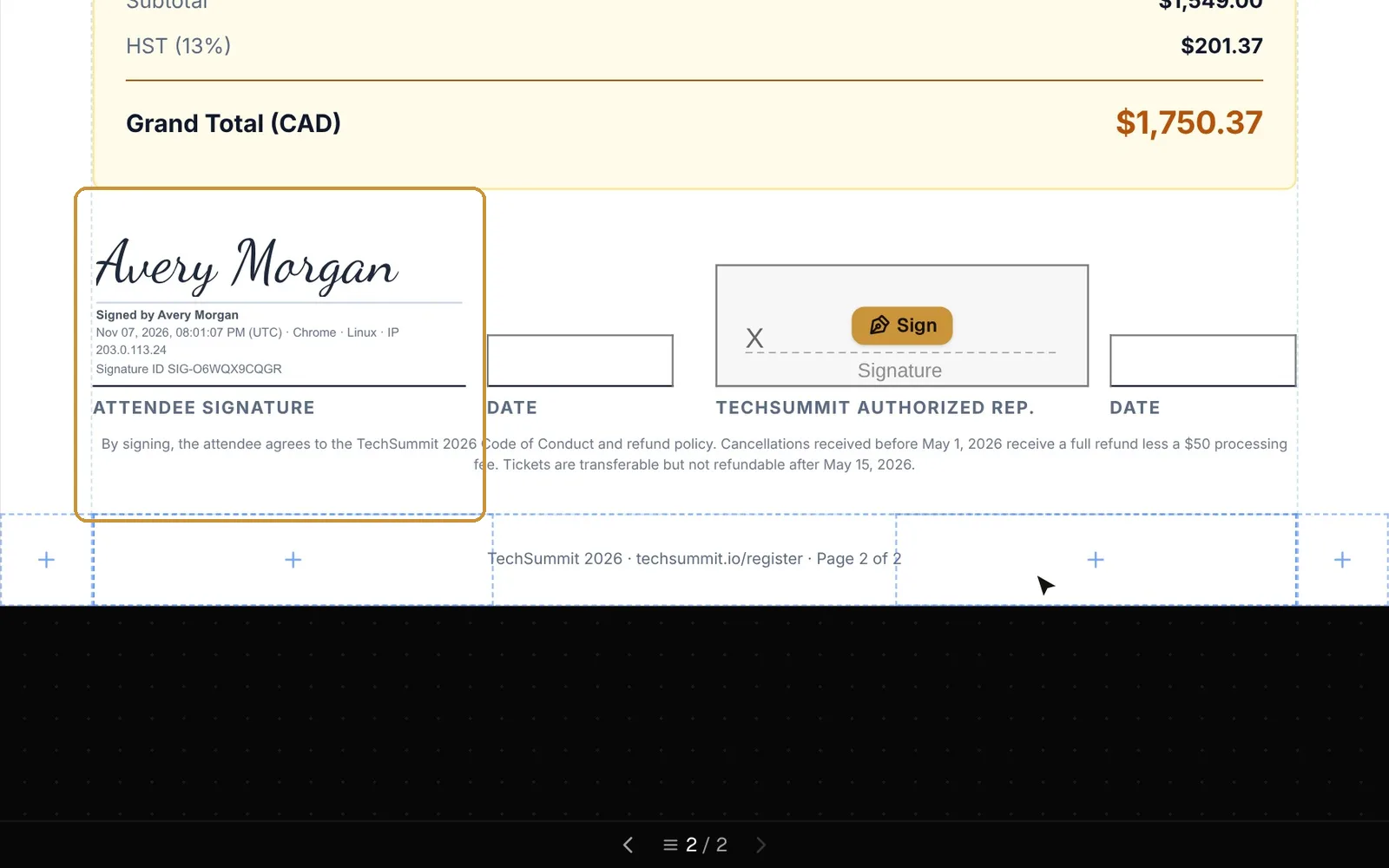
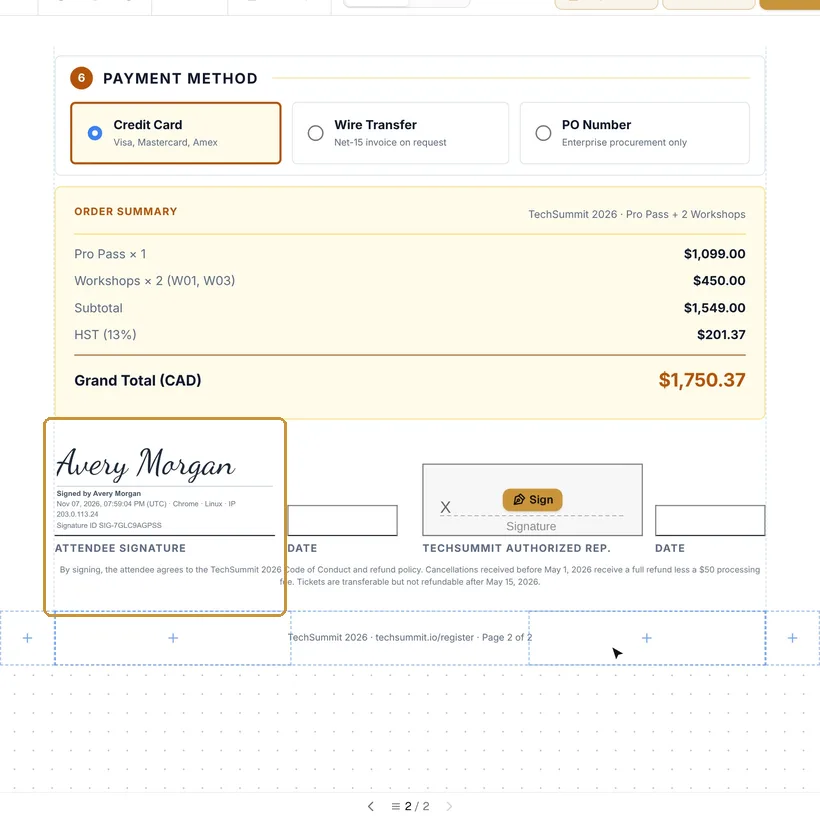
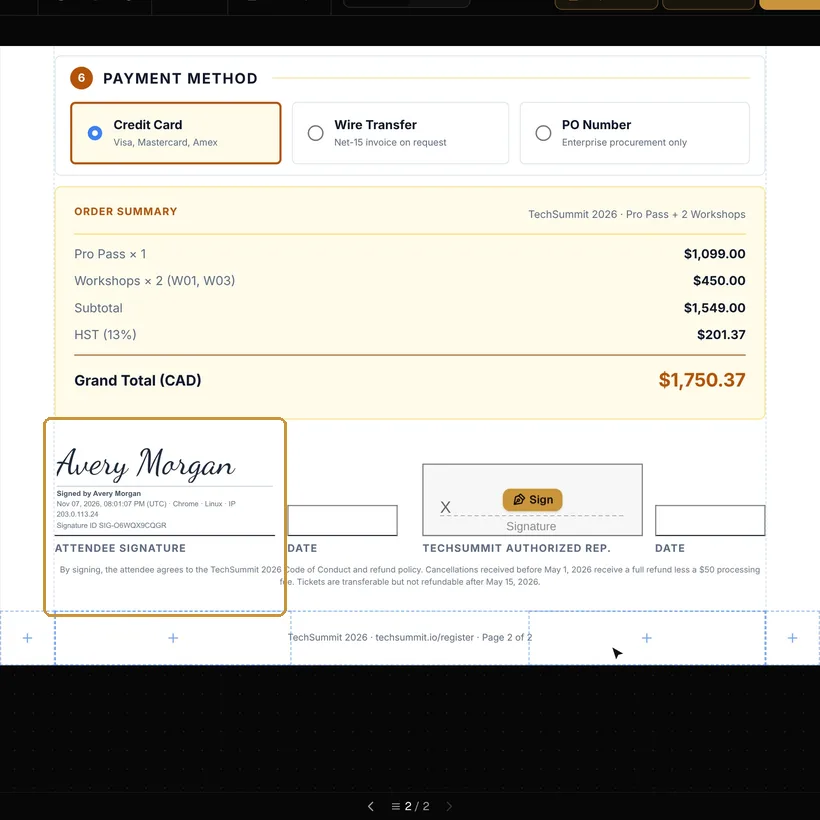
Click Sign it on a signature field, or add Signature from Signing and codes. The first time, the signature window opens: type your name and choose one of six handwriting fonts, or Draw instead with the mouse, a finger or a pen. Then Sign.
- The Audit stamp under the signature says who signed, the date and time with the time zone, the IP address and device, and a signature ID. Turn it off in the window if you do not want it.
- Sign the next fields with it in one click keeps the signature on this device; later fields sign at a click. A signed field’s properties offer Sign again, Change my signature and Remove.
Left unsigned, a signature field stays a field in the downloaded PDF: whoever receives the file signs there in Acrobat or another PDF reader. Line to sign by hand is for a printed page: a line with a caption, and no field.