Layers
Layers is the map of your document — the full tree of every element, page by page. It's the precise way to select deeply-nested things and to rearrange structure without dragging on the canvas.
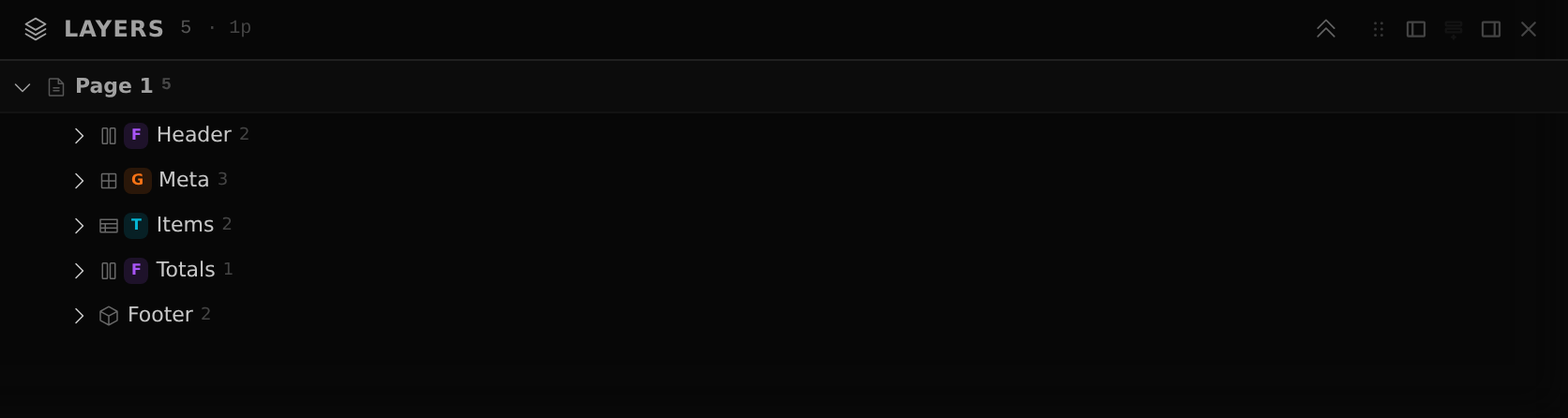
Select & reveal
Click a row to select that element — the canvas jumps to it and the Properties panel fills in. It works the other way too: select something on the canvas and the tree expands and highlights it. That two-way link is the fastest way to find a specific element in a busy document.
Reorder & re-nest
This is where you change the structure of the document deliberately:
- Reorder among siblings — drag a row, or use Alt+↑ / ↓.
- Nest in — move an element into the sibling above it with Alt+→.
- Move out — lift it out to its parent's level with Alt+←.
- Wrap — wrap the selected element in a new container.
Right-clicking a row opens the full menu — copy, cut, paste, duplicate, the reorder/re-nest actions above, and delete.
Lock & hide
- Hide (the eye) — toggles an element out of view while you work; it still exports.
- Lock — freezes an element so it can't be selected or moved on the canvas by accident.
Note
On touch devices, canvas drag for moving elements is off by design — Layers (and the mobile Move menu) is how you reorder and re-nest. See Editing on mobile.