The canvas
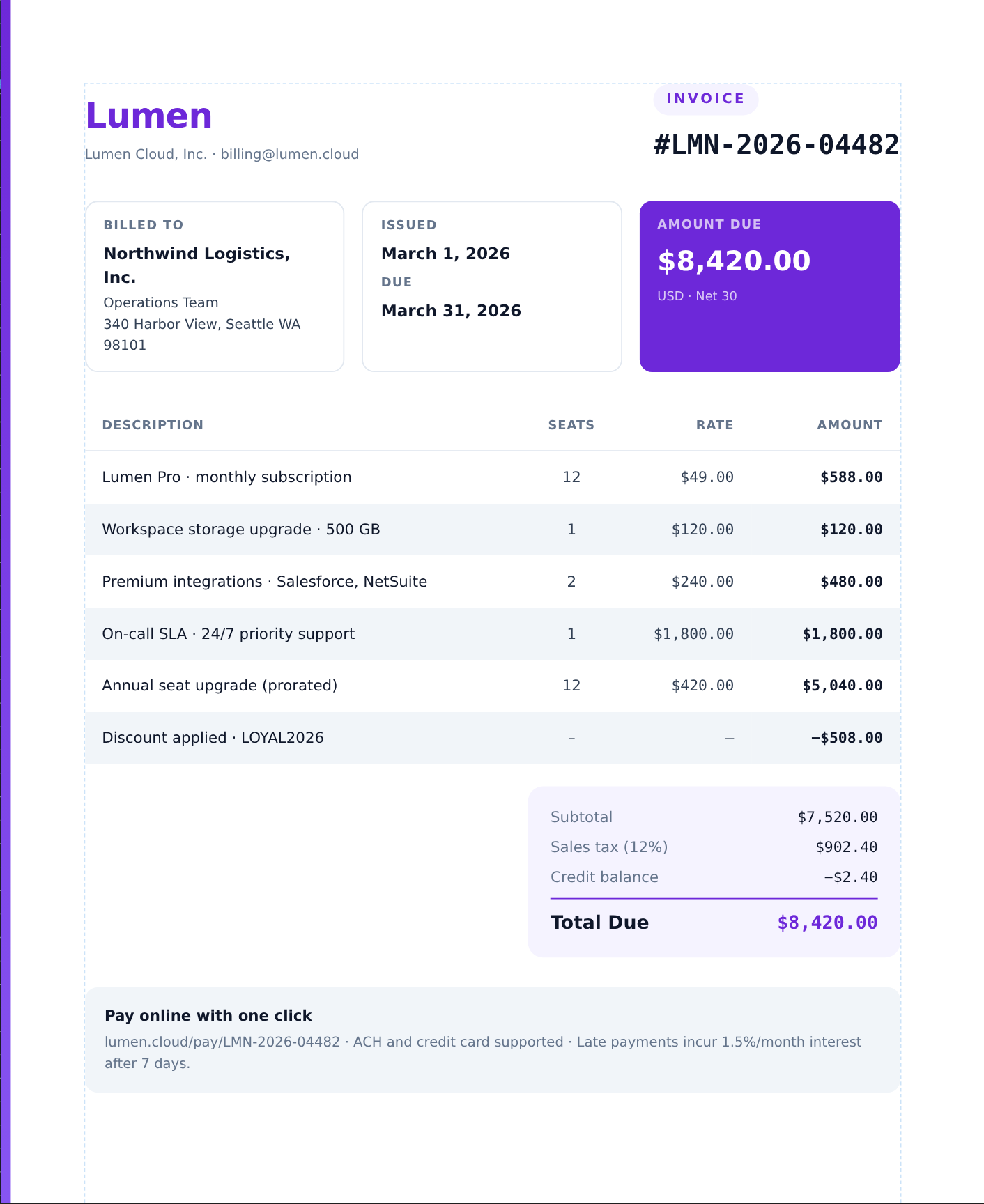
The canvas is your document, rendered exactly as it will export. You don't draw on top of a picture — you edit the real structure, and everything reflows as you go.
Selecting
Click any elementto select it. The selection outline shows what you've picked, and the properties panel on the right switches to its settings. Click empty space to deselect.
- Drill into nesting — the breadcrumb above the canvas shows the full path to the selected element (for example page → container → table → cell). Click any step to select that ancestor.
- Select several — hold Ctrl / ⌘ and click to add elements to the selection.
- Tables drill down predictably: the first click selects the table, the next selects the cell or row, and a click on an already-selected cell starts editing its text.
Editing text
Double-click any textto edit it in place — it's a real rich-text field, so you can set bold, italic, links and lists inline. Click away (or press Esc) to commit. Text isn't locked to a box: as you add or remove lines, the surrounding layout reflows.
Adding content
There are three ways to add a block, whichever fits your flow:
- Type on the page — click an empty spot on a page and start typing; a paragraph appears right there.
- From the Blocks panel — click a block to drop it in, or drag it to the exact spot you want.
- Right-click — open the context menu on a page or an element to add a block, duplicate, wrap, or reach table tools, all in one place.
Reflow
ReflowPDF edits structure, not a frozen image — so adding a table row, deleting a column, or typing a paragraph makes everything below adapt, columns resize, and page breaks adjust on their own.
Zooming & panning
- Zoom — scroll to zoom, or use the zoom control in the toolbar. ⌘+0 fits the page to the window.
- Pan — hold Space and drag to move around a large document.
- On touch — pinch to zoom and drag with one finger to pan; tap to select, double-tap text to edit.