Blocks
Everything you put on a page is a block. The Blocks panel on the left is the library, grouped into six categories — click a block to drop it in, or drag it exactly where you want it.
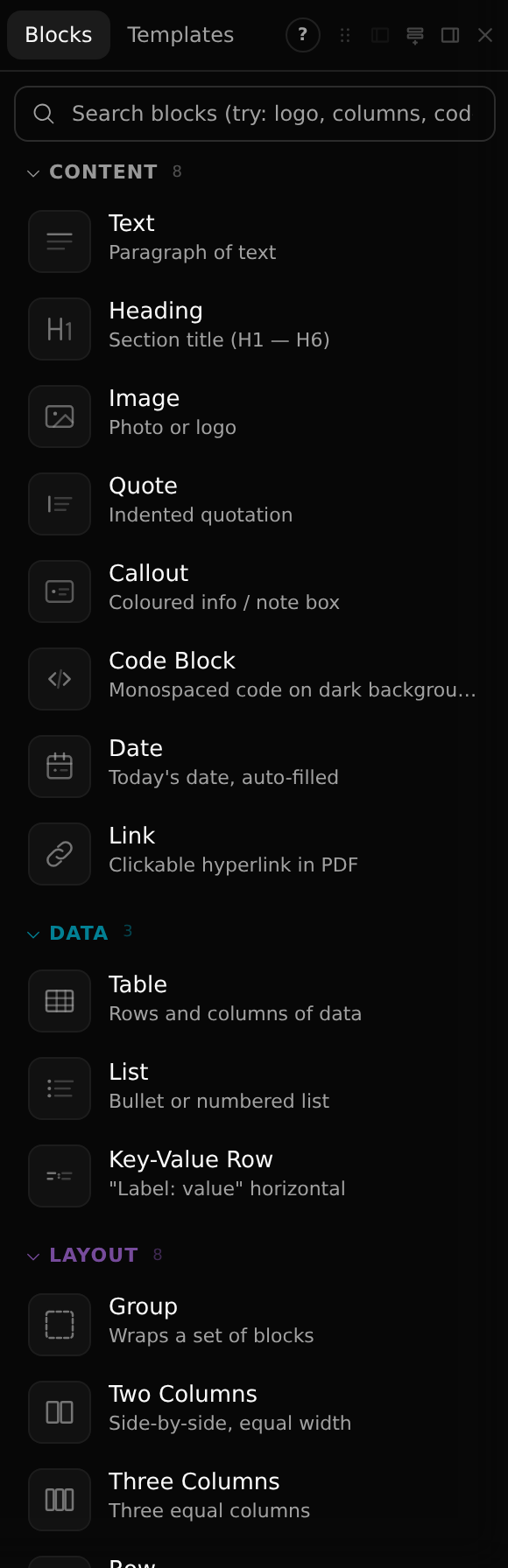
Three ways to add a block
- Click a block in the panel to drop it into the page.
- Drag it onto the canvas to place it exactly, including inside a container.
- Right-click a spot on the page and pick a block to insert it right there.
Two tabs sit at the top: Blocks (individual pieces) and Templates (whole ready-made documents). The search field filters as you type, and the ? button opens a plain-words guide to every block.
Content
- Text and Heading — paragraphs and section titles, edited in place.
- Image — a photo or logo, with object-fit and sizing.
- Quote and Callout — an indented quotation and a coloured note box.
- Code Block — monospaced code on a dark background.
- Date — today's date, auto-filled.
- Link — a hyperlink that stays clickable in the exported PDF.
Data
- Table — rows and columns, with add/remove row and column tools.
- List — a bulleted or numbered list.
- Key-Value Row — a “Label: value” pair laid out horizontally.
Layout
Containers — they hold other blocks and decide how they sit together. Adding one and dropping blocks inside is how you build structure.
- Group — a plain container that wraps a set of blocks.
- Two Columns / Three Columns — equal-width side-by-side columns.
- Row and Column — flexible items laid out across or stacked down.
- Grid — a rows × columns layout for anything more structured.
- Horizontal Line and Empty Space — a separator and a vertical gap.
Dynamic
Generated or special-purpose blocks:
- QR Code and Barcode — generated from a URL or text (Code128, EAN, UPC and more).
- Chart — a bar, line, pie or donut chart from data you enter.
- Table of Contents — built from your headings.
- Icon — a vector icon from the built-in set.
- Drawing — a freehand sketch / annotation layer.
- Signature — a drawn or typed signature.
- Page Break — force the content after it onto a new page.
Presets
- Address Block — a ready-made name/address layout.
- Signature Line — a labelled line to sign over.
Shapes
Vector primitives for diagrams, badges and accents — all stroke/fill editable: Rectangle, Rounded Rect, Circle, Ellipse, Triangle, Line, Arrow, Star, Hexagon, Badge and Chevron.
Note
How a container arranges its children — flex, grid or plain block — is set on the container itself in the Properties panel. See Layout modes.