The Mac is the one platform where the built-in answer is genuinely strong: Preview, already in your Dock, covers more PDF jobs than most paid apps. The honest map looks like this — Preview owns everything around the content; it owns nothing inside it.
The Preview playbook
Annotate and highlight. Open the PDF, click the Markup icon (pen tip in a circle). Highlighting works straight off the text cursor; the toolbar adds shapes, arrows, notes and freehand.
Sign. Markup toolbar → Sign. Draw on the trackpad, or hold your signature on paper up to the camera — Preview cuts it out cleanly and remembers it. Drop it on the signature line and resize.
Fill forms. If the PDF has real form fields, click and type. Preview handles standard AcroForms well; for flat “print-and-fill” forms, use a text box from the Markup toolbar instead.
Page surgery — the underrated part. With thumbnails visible (View → Thumbnails):
- Reorder pages by dragging thumbnails.
- Delete a page: select the thumbnail, press Delete.
- Rotate scanned pages from the toolbar.
- Merge documents: drag a second PDF file from Finder into the sidebar — done. This one replaces a whole category of sketchy “merge PDF online” sites, with nothing uploaded anywhere.
- Move pages between PDFs: open both, drag thumbnails from one sidebar to the other (dragging a thumbnail to the Desktop also peels it off as its own file).
One warning Apple prints in its own docs and everyone skips: Preview saves changes automatically. If you need the original intact, File → Duplicate before you start cutting.
Redact (macOS Big Sur and later). Tools → Redact actually removes the content under the black box, not just covers it. A black rectangle drawn with Markup is not redaction — the text underneath survives copy-paste.
Preview’s hard limit
Preview will not change the text that’s already in the document. Not a word, not a number, not a font. A PDF stores letters as positioned glyphs, and Preview has no concept of editing that layer — its text boxes float on top of the page.
So if the task is “fix the total on this invoice”, “update the address in this letter”, “rewrite two sentences in this proposal” — Preview is the wrong tool, and no amount of menu-hunting changes that.
Editing the content itself
The path for real edits is a structural editor in the browser. It comes in two doors, and it’s worth knowing which is which:
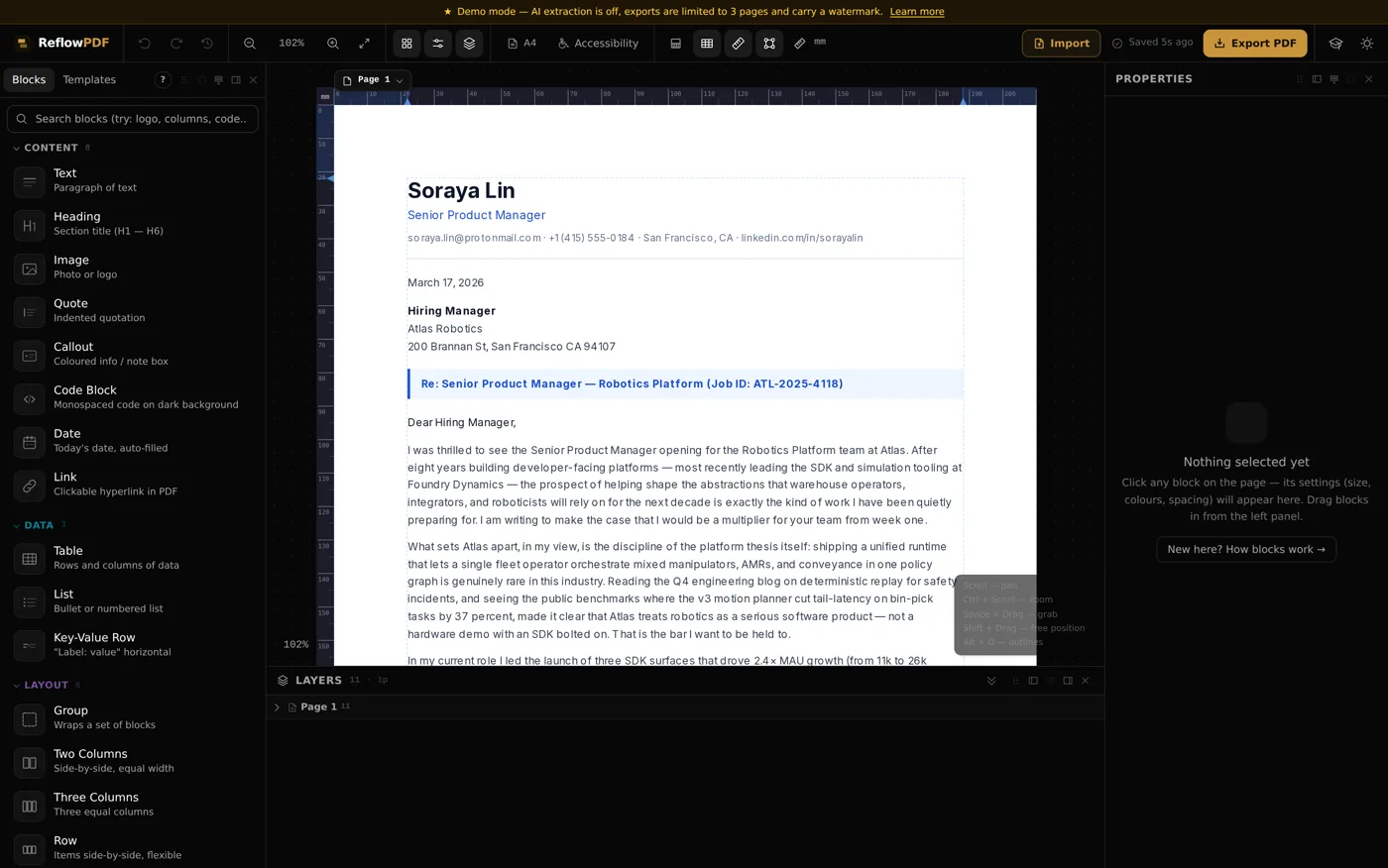
Door one — no account: the demo editor runs the full editor with templates, straight in Safari or Chrome. Good for building a new document or seeing how structural editing feels; demo exports are limited to 3 pages and watermarked.
Door two — importing your PDF: rebuilding an existing file into an editable document runs through AI extraction, which lives behind a free account. The free plan includes 3 import pages a month and 50 watermark-free export pages — enough to actually fix that letter, not a trial that expires. Import it, retype what’s wrong (text reflows as you type), swap the logo, then Export PDF — and the output is a tagged, accessible PDF, which Preview’s output never is.
Import quality, honestly: reconstruction is most reliable on text-first documents (letters, contracts, invoices, reports); art-heavy layouts can need touch-ups. One exception runs in your favor — PDFs exported by ReflowPDF itself reopen exactly, no AI involved.
The two-tool answer
For a Mac, the complete setup is exactly two tools: Preview for signatures, annotation and page management (free, on-device); a browser editor for content. Between them there’s very little left that actually requires Acrobat — we wrote up what's genuinely left separately. On an iPhone the same logic applies with Markup — see the iPhone guide.