Every other platform guide in this series starts with “here’s the desktop app you don’t have”. A Chromebook skips that conversation: it can’t install desktop Acrobat at all, and it never needed to — ChromeOS handles the quick jobs natively, and the browser it boots into is the platform for the real ones.
Built in: Gallery, the tool nobody told you about
Open any PDF from the Files app and it launches in Gallery, ChromeOS’s bundled viewer-editor. What it covers:
- Fill forms — interactive fields are typed into directly; flat forms take a text annotation placed wherever you need it.
- Sign — draw a signature and place it on the page.
- Annotate — pen and highlighter with a couple of nib sizes.
- Save — writes into the PDF, ready to send back.
That’s the whole permission slip / lease agreement / “sign and return” category, handled offline by the OS itself. Gallery’s ceiling is the same as every annotation tool’s: it layers ink over the page and cannot change a word of what the document already says. And one caution straight from Google’s own docs — drawing a box over text in Gallery is not redaction; the text underneath remains in the file.
The real editing layer is the browser — which is the whole machine
On a Chromebook, “web app” isn’t a compromise, it’s the native runtime. A structural PDF editor in the tab does what desktop editors do elsewhere, and the costs are refreshingly legible:
- Creating documents — the editor with its templates runs without an account for a try-out (demo exports: 3 pages, watermarked), and a free account lifts that to 50 watermark-free pages a month.
- Importing an existing PDF rebuilds it with AI into live paragraphs, tables and images — that runs on a free account, with 3 import pages a month included on the free plan.
From there it edits like a document, not a picture: retype a sentence and the layout reflows, fix numbers in table cells, drop in a new image, then Export PDF — print-ready and tagged for accessibility, which matters if the file is headed for a school district or government inbox.
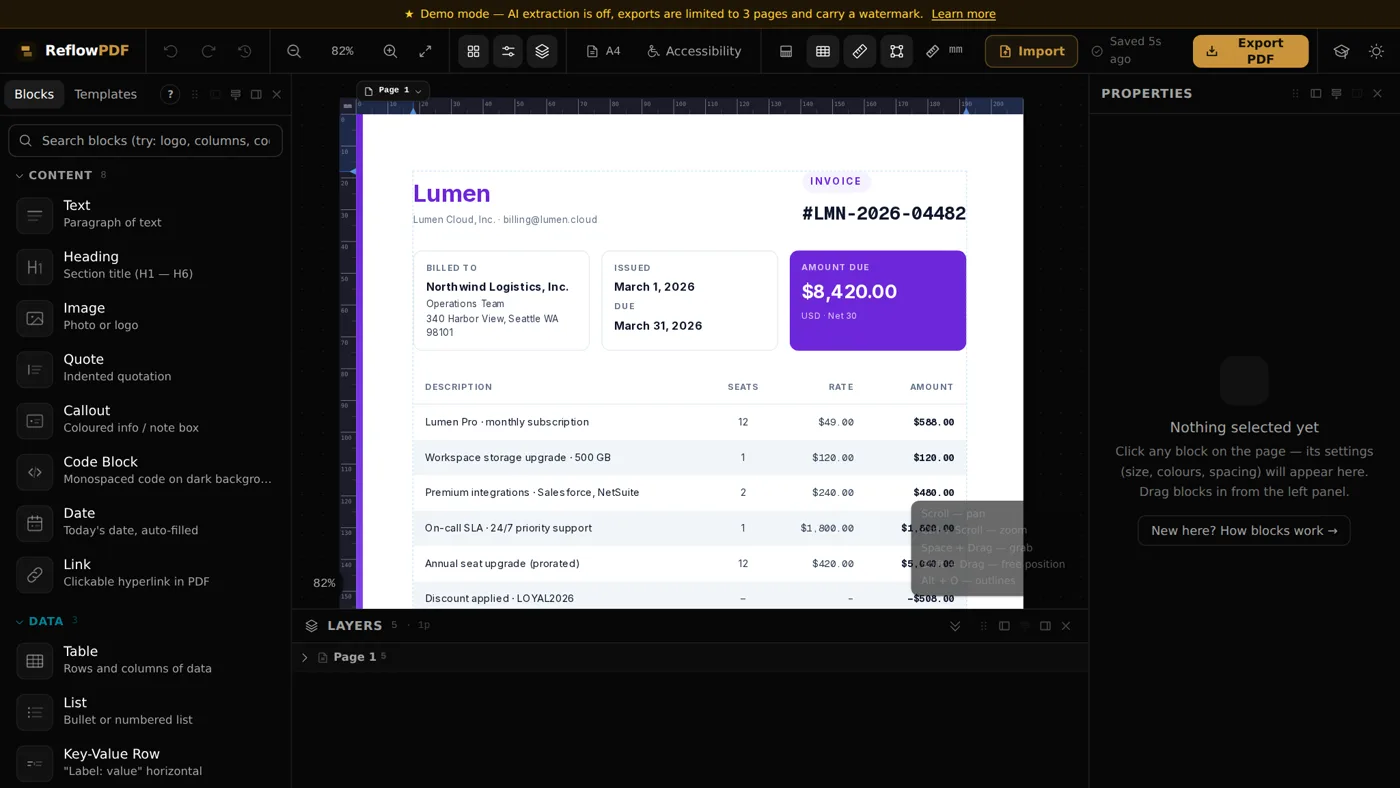
Import reconstruction tracks the document: text-first files come through cleanly, heavily art-directed ones may need fixes. ReflowPDF’s own exports reopen exactly — the editable source travels inside the PDF, no AI involved.
School and work Chromebooks: two notes
- Managed devices often block app installs entirely — which is precisely why the browser route matters: it needs no install and no extension, just a tab.
- Offline: Gallery works with no connection; the browser editor needs one for import/export. Plan the signing-in-a-basement scenarios accordingly.
The complete Chromebook answer
Gallery for sign-and-return paperwork; the browser editor for anything that changes content — or for building a new PDF from a template in the first place (try it without an account). If you also live on other machines, the same jobs map differently there: iPhone, Mac, Android, and the general no-Adobe playbook.