How to edit a PDF on an iPhone: what is built in, and what takes an editor
An iPhone signs, annotates and fills PDFs out of the box, but cannot change the text already in them. What each built-in tool does, and how to change the text in the browser.
, updated , a 2-minute read
Your iPhone already handles the common PDF jobs (signing, highlighting, filling in forms, adding a note) with Markup, which is built into iOS. What no built-in tool does is change the text already in the document.
What the iPhone already does
A PDF opened from the Files app shows the Markup tools. iOS 26 adds Apple’s Preview app, which opens PDFs and fills out and signs forms with the same tools (Apple’s guide).
| You want to… | Built-in tool | Where |
|---|---|---|
| Sign a PDF | Markup → Add Signature | Files (Preview on iOS 26) |
| Highlight, draw, strike through | Markup pens | Files, Mail, Photos |
| Fill in a form | Tap the fields; AutoFill helps | Files |
| Add a note on top | Markup → + → Text | Files |
| Rewrite text, fix a table, change a picture | Nothing built in | See below |
Sign, highlight or fill in
- Save the PDF to Files (from Mail or Safari: Share → Save to Files).
- Open it and tap the pencil (Markup).
- The + menu has Text, Add Signature, shapes and a magnifier; the pens highlight and draw.
- Tap Done. The changes are saved into the PDF, ready to share.
If the form has real fields, you do not need Markup: tap a field and type, and iOS offers AutoFill from your contact card. A signature you draw once is kept for next time.
Where Markup stops
Markup is ink on top of the page. If the PDF says the meeting is on Tuesday and it is on Thursday, no built-in tool will change that word; you can only cover it with a white box and type over it. That is the PDF format rather than the iPhone: a PDF stores each line at a fixed place, with no paragraph to type into. To change the text, the PDF has to be rebuilt as a document.
Changing the text, in Safari
An editor in the browser does that without installing an app.
- Open app.reflowpdf.com in Safari. The editor opens without an account, with templates to start from.
- To edit a PDF you already have, tap Import and pick it from Files. Import rebuilds it with AI and takes a free account: one AI page per page of the PDF, 10 a month on the free plan.
- The document comes back as paragraphs, table cells and pictures. Tap a paragraph and type; what follows moves down, across pages if it has to.
- Download the PDF. Without an account every page carries a small mark; a free account gives 50 pages a month without it. The PDF is tagged for screen readers.
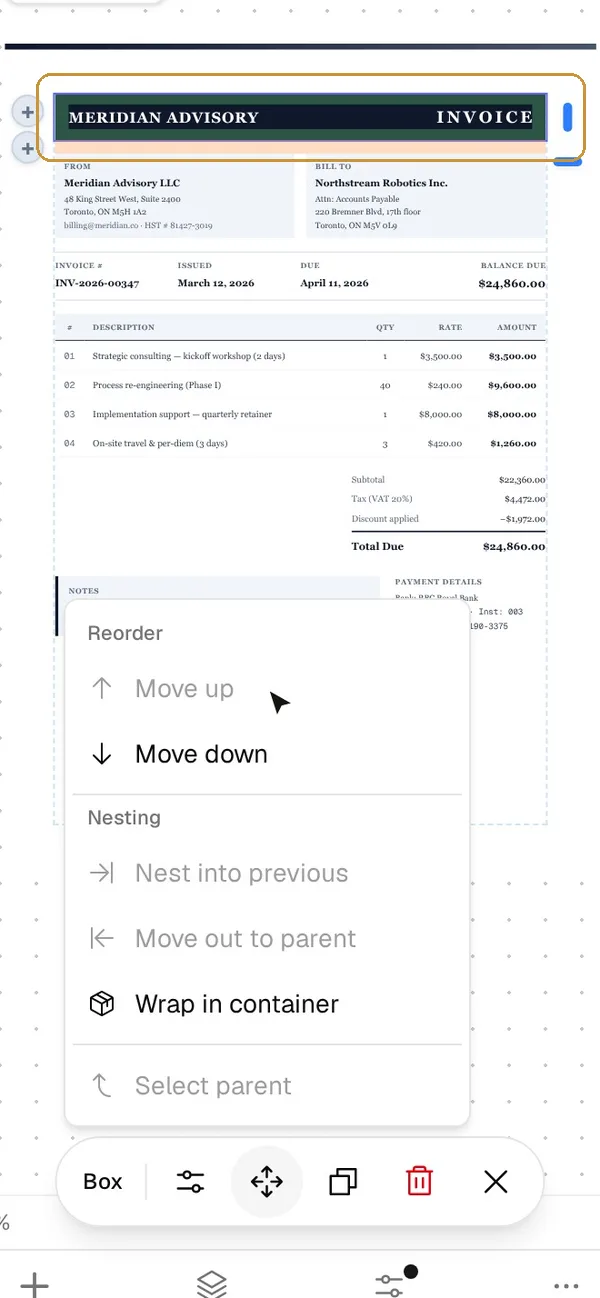
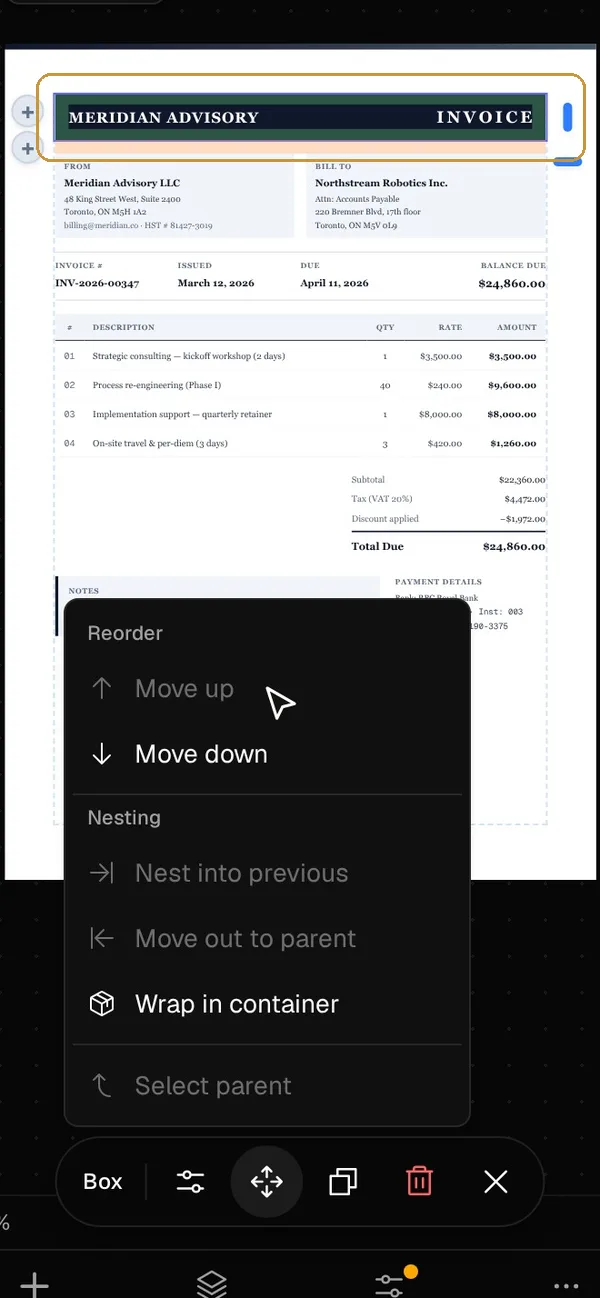
Import rebuilds the PDF with AI; fonts and layout can differ from the original, so compare the two before you send it. A PDF downloaded from ReflowPDF with Keep the PDF editable on reopens as the same document, without AI.
Which way to go
- Sign it, mark it up, fill it in: Markup, in the Files app.
- Change what it says: the editor in Safari.
- On a computer: the Mac guide, or which tool for which job without Acrobat.
Questions
- Can I edit a PDF on my iPhone for free?
- Signing, highlighting, drawing and filling forms are built into iOS (Markup). Changing what the document says, a paragraph, a price in a table or a logo, is not something a built-in tool does; for that, open an editor in Safari. ReflowPDF opens without an account, and importing your own PDF takes a free account with 10 AI pages a month.
- How do I write on a PDF on an iPhone?
- Open the PDF from the Files app, tap the pencil (Markup), then + and Text. That puts a new text box on top of the page, which is enough to fill a form that has no fields. It does not change the text underneath.
- How do I sign a PDF on an iPhone?
- Open the PDF from Files, tap Markup, then + and Add Signature. You draw it once and iOS keeps it for next time. A form with signature fields can also be tapped directly.
The editor opens without an account. Type into a document and the pages after it are laid out again; download it as a tagged PDF. Importing a PDF of your own takes a free account.
More from the blog
How to edit a PDF on a Mac: what Preview does, and where it stops
Preview signs, annotates, fills forms and rearranges pages, free and on the Mac. It cannot change the text already in a PDF. What it does, step by step, and how to change the text., a 2-minute readHow to edit a PDF on Android without paying for an app
Android has no built-in PDF editor. Google Drive and Acrobat Reader fill, sign and comment for free; changing the text takes an editor, which runs in Chrome., a 2-minute readHow to edit a PDF without Adobe Acrobat: which tool for which job
Signing, filling and annotating are built into Mac, iPhone, Chromebook and Windows; changing what a PDF says takes an editor. A job-by-job map., a 3-minute read